I put CloudFront in front of my Lightsail site for a few reasons: faster load times globally, less load on my instance, and better options for defending against bot traffic at the edge. I also wanted a setup where Lightsail is just the origin and CloudFront is the public front door, which makes future changes easier.
This is what I did, what broke, and what fixed it.
What I started with
- A Lightsail Linux instance running Apache
- The main site is mostly PHP pages plus CSS/JS/images
- The blog lives at
antpace.com/blog(WordPress) - DNS already in Route 53
- HTTPS already working on the instance using Certbot
The mental model
CloudFront is the front door. Lightsail becomes the origin behind it.
That means two separate HTTPS concerns:
- Visitors hitting
antpace.comneed a certificate attached to CloudFront (ACM) - CloudFront talking to the origin also needs HTTPS on an origin hostname
Setting up the origin hostname
CloudFront won’t accept an IP address as an origin. It needs a domain name. So the first move was creating:
backdoor.antpace.com→ Lightsail static IP (Route 53 A record)
Then I made sure the origin worked over HTTPS using the same mechanism I already had on the instance.
To confirm what I was actually using:
sudo certbot certificates
sudo sed -n '1,200p' /etc/letsencrypt/renewal/antpace.com.conf
That confirmed Certbot and showed the exact webroot path being used for renewals.
- Route 53 record for
backdoor.antpace.com certbot certificatesoutput
Getting the CloudFront certificate (ACM)
CloudFront requires an ACM certificate in us-east-1, even if your origin is in a different region.
So I requested a cert in ACM for:
antpace.comwww.antpace.com
Then validated it through Route 53.
- ACM certificate request page showing the domains and DNS validation records
Creating the distribution and choosing policies
This is where the setup becomes worth it, but it’s also where you need to treat the main site and WordPress differently.
My main site is basically “static-ish” content, but /blog is WordPress. So I split behaviors and used different policies.
Default behavior (*) for the main site
- Viewer protocol policy: Redirect HTTP to HTTPS
- Allowed methods: GET, HEAD
- Cache policy:
CachingOptimized(managed)
I verified caching was working with:
curl -I https://antpace.com | egrep -i 'x-cache|age|via'
curl -I https://antpace.com | egrep -i 'x-cache|age|via'
First request was a Miss, second request was a Hit with an age header.
- CloudFront distribution details page
- Behaviors tab showing Default (*)
Blog behaviors for WordPress (/blog/*)
I kept WordPress safe by disabling caching on the blog paths and forwarding what WordPress needs.
Behaviors I added:
/blog/wp-admin/*/blog/wp-login.php/blog/*
I know the above is redundant, but in the future I may allow some cacheing on the blog post pages, but always keep the other two routes disabled.
For all three:
- Viewer protocol policy: Redirect HTTP to HTTPS
- Allowed methods: All
- Cache policy:
CachingDisabled - Origin request policy:
AllViewer
This is the “don’t get fancy yet” setup. It keeps logins/admin sane and avoids CloudFront caching anything dynamic.
Behaviors list showing the /blog/* paths and policies
Bot defense at the edge
One of the underrated reasons to do this is that CloudFront gives you an edge layer for basic bot defense. Even on the free plan, you can enable rate limiting/monitoring so random traffic is handled earlier, instead of everything slamming your Apache box directly.
I turned on the recommended rate limiting settings (it starts in monitor mode), then I can tighten it later if I need to.
- Security / rate limiting settings screen
The redirect loop issue (and why it happened)
After switching DNS, browsers started throwing “too many redirects.”
The fastest way to see what was happening:
curl -IL https://www.antpace.com | head -n 40
It was an endless chain of 301s. The cause was not CloudFront. It was my origin.
I had unconditional Apache redirects living in two configs:
/opt/bitnami/apache/conf/bitnami/bitnami.conf/opt/bitnami/apache/conf/bitnami/bitnami-ssl.conf
And the line was:
Redirect permanent / https://www.antpace.com/
That redirect is too blunt once CloudFront is in front. CloudFront can cache the redirect and then you’ve got a fast global redirect loop.
This command found it immediately:
sudo grep -R --line-number -E "RewriteEngine|RewriteCond|RewriteRule|Redirect" \
/opt/bitnami/apache/conf/bitnami /opt/bitnami/apache/conf/vhosts 2>/dev/null
Fix was removing those redirects from both files.
- grep output showing the redirect line in both files
- browser redirect error page
Canonical redirect at the edge (CloudFront Function)
I still wanted apex → www, but I didn’t want Apache doing it anymore.
So I created a CloudFront Function and attached it to the Default behavior on Viewer request:
function handler(event) {
  var request = event.request;
  var host = request.headers.host.value;

  if (host === 'antpace.com') {
    var qs = request.querystring;
    var loc = 'https://www.antpace.com' + request.uri + (qs && qs.length ? ('?' + qs) : '');
    return {
      statusCode: 301,
      statusDescription: 'Moved Permanently',
      headers: {
        location: { value: loc }
      }
    };
  }

  return request;
}
This makes the redirect logic obvious and centralized, and it keeps the origin hostname out of the equation.
- CloudFront Function code + association on the behavior
Invalidate CloudFront cache on deploy (GitHub Actions)
My deploy process is GitHub Actions. It SSHes into Lightsail and runs my deploy script. With caching enabled, I wanted updates to show up immediately after a push.
So I added a CloudFront invalidation step after deploy:
- name: Configure AWS credentials (OIDC)
  uses: aws-actions/configure-aws-credentials@v4
  with:
    role-to-assume: ${{ secrets.AWS_ROLE_ARN }}
    aws-region: us-east-1

- name: Invalidate CloudFront
  run: |
    aws cloudfront create-invalidation \
      --distribution-id "${{ secrets.CLOUDFRONT_DISTRIBUTION_ID }}" \
      --paths "/*"
That’s the simple version. I can narrow it later, but /* makes “deploy means live” true.
- GitHub Actions run showing the invalidation step
- CloudFront invalidations tab
What I got out of this
- Faster global delivery of the main site via edge caching
- Less load on Lightsail
- WordPress stays safe because
/blog/*is not cached and forwards the right stuff - Better options for bot defense at the edge
- Canonical redirects handled at CloudFront instead of server config files
- Automated deploy invalidation so changes show up right away
If you’re doing this on a mixed site (static-ish pages plus WordPress), the split behaviors are the whole thing. Treating everything the same is how you end up caching logins or debugging redirects at 2am.
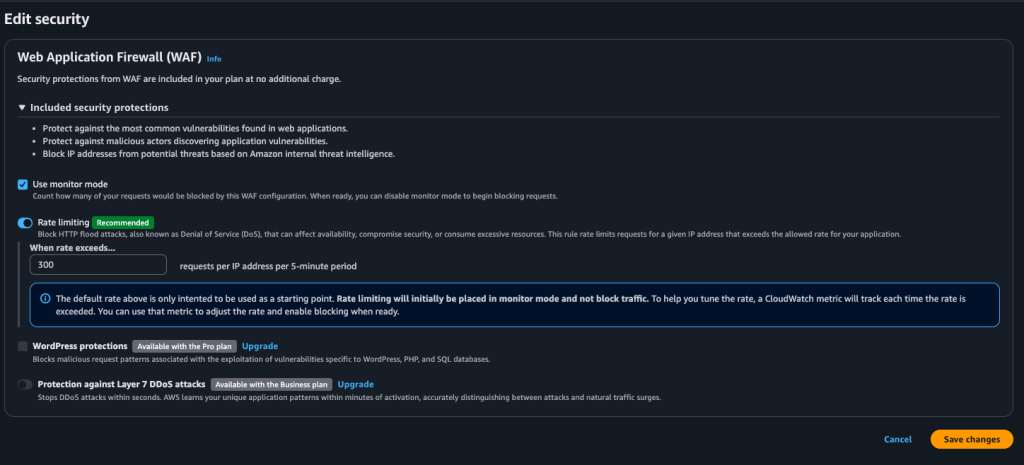
When I went to save this post in WordPress, it kept failing with the classic editor error: “Updating failed. The response is not a valid JSON response.” At first it looked like a WordPress problem, but the actual response coming back was a CloudFront-generated 403 “Request blocked” HTML page, which meant the request never made it to WordPress at all. The weird part was it only happened with certain content. Normal edits saved fine, but as soon as I pasted in code-heavy sections (Apache config blocks, rewrite rules, YAML, JS), CloudFront’s built-in WAF protections flagged the request body as suspicious and blocked it. The fix was simple once we knew what was happening: I enabled WAF “monitor mode” on the CloudFront distribution so it would log potential blocks instead of enforcing them, and after the change finished deploying across CloudFront, saves started working again. I kept rate limiting on for bot defense, but left the common-threat protection in monitor mode until I eventually switch to a full WAF Web ACL where I can add exceptions for WordPress editor endpoints.
One extra thing I did on the WordPress side was add a tiny mu-plugin as a guardrail. I like mu-plugins for infrastructure-style fixes because they always load and they cannot be accidentally disabled in the admin UI. I did not put anything “in wp-admin” because the block editor issue is really about REST requests and editor endpoints, and WordPress updates can overwrite admin code anyway. Also, I don’t track that file in version control.The mu-plugin lives in wp-content/mu-plugins/ and keeps the behavior consistent no matter what theme or normal plugins are doing.