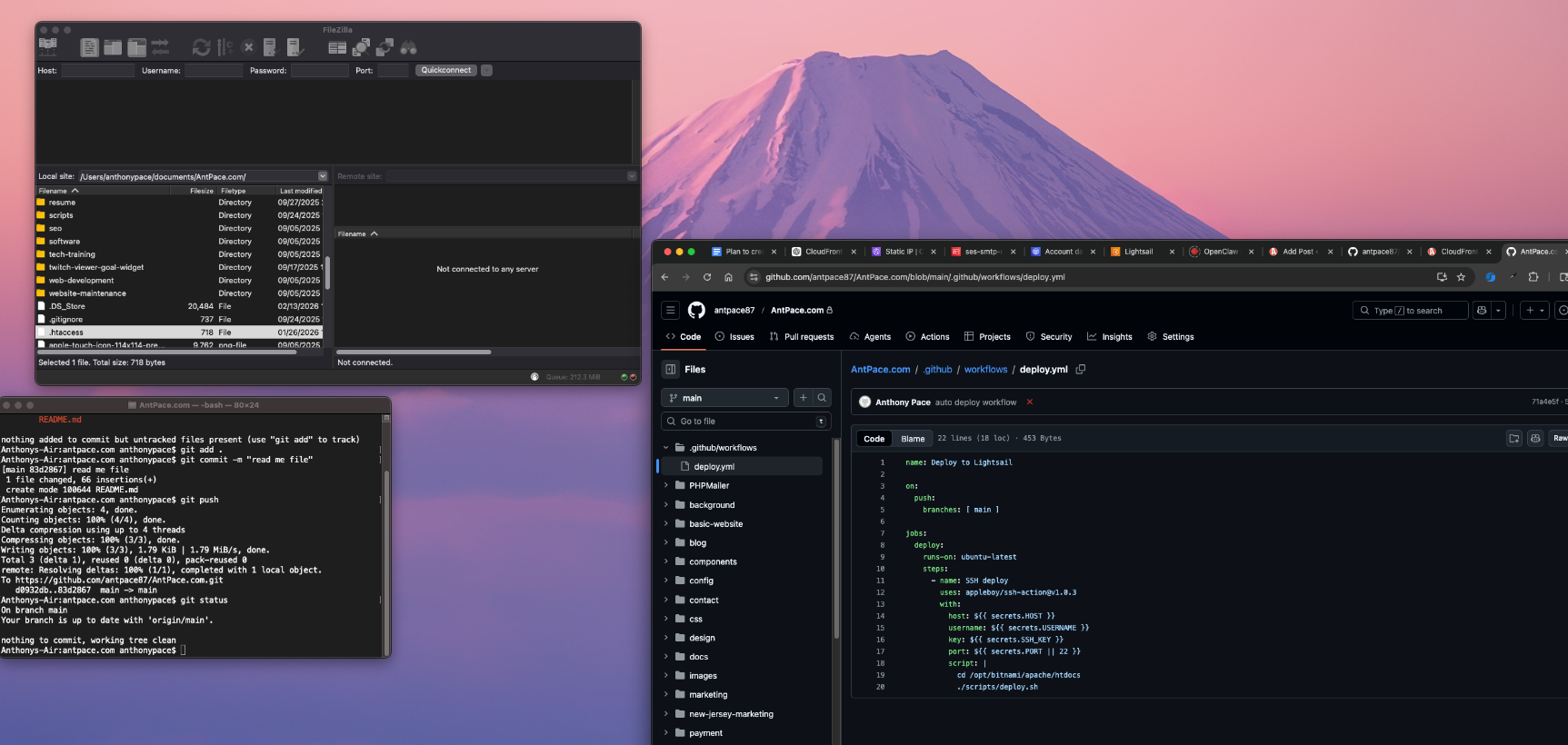
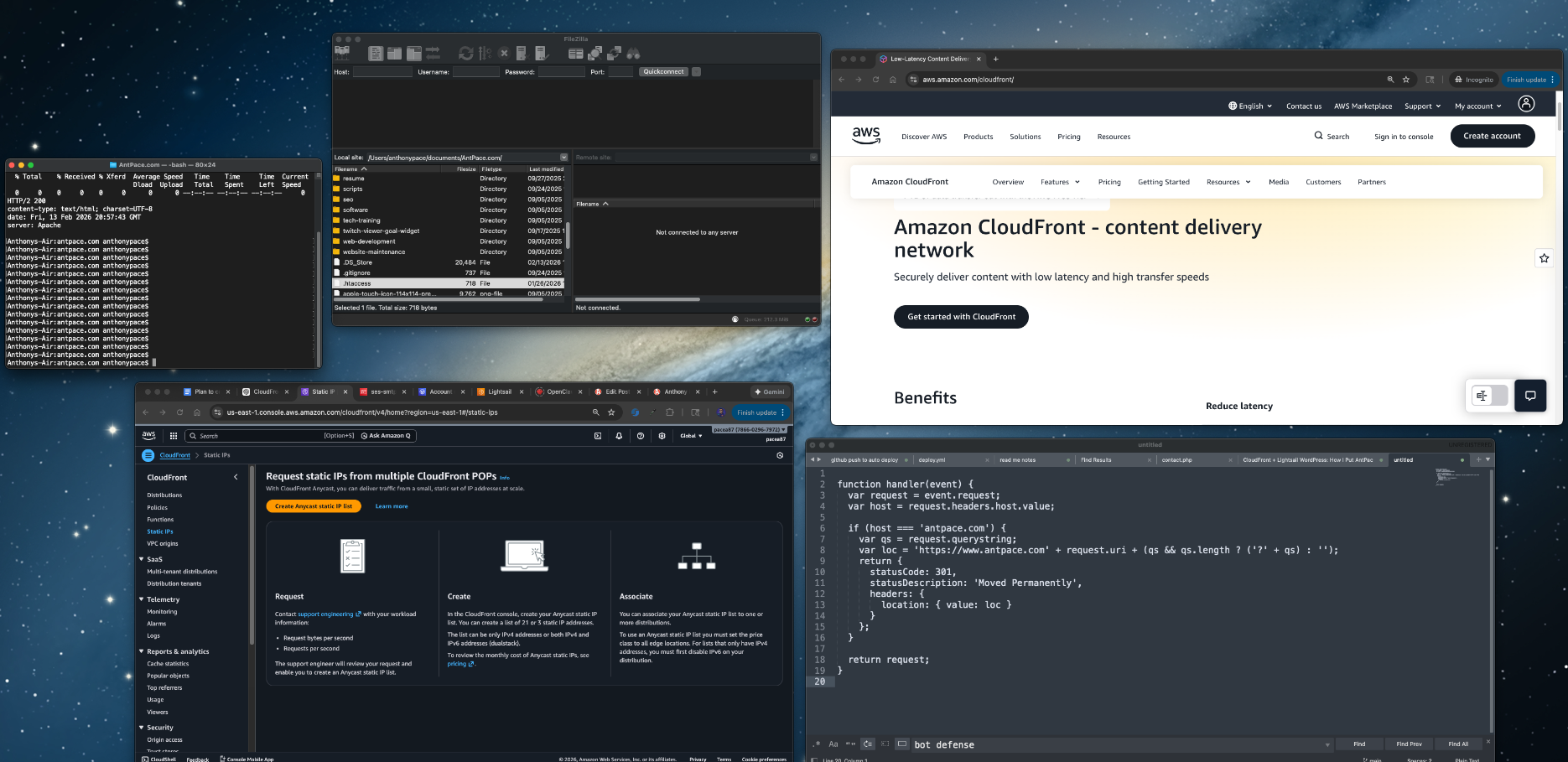
My original deploy flow was the classic “freelancer special”:
Make changes locally, open FileZilla, SFTP into the server, drag files over, hope I didn’t miss anything, refresh the site, repeat.
It worked, but it was slow and it always felt a little fragile. So we switched to auto-deploys with GitHub Actions. Now whenever I push to main, GitHub connects to the server and runs a deploy script automatically.
Push code → live site updates. No more FileZilla sessions.
And here’s a bonus I didn’t fully appreciate until I started using it: it also makes it ridiculously easy to make small static page edits from my phone using the GitHub.com editor. Change a line of HTML, fix a typo, update a link, commit to main, and it deploys the same way as if I did it from my laptop.
What We Set Up
Trigger: A push to main runs the workflow.
Action: The workflow SSHs into the server (in our case, an AWS Lightsail instance), goes to the site’s document root, and runs a small deploy script.
Result: Every push to main updates the live site without manual SFTP, SSH, or FTP.
appleboy/ssh-action runs the given script on your server over SSH.
host, username, key, and optionally port come from GitHub Secrets so you never put credentials in the repo.
Adjust the cd path to your actual document root.
2. The Deploy Script on the Server
On the server, we keep the deploy logic in a script (e.g. scripts/deploy.sh) that the workflow runs:
#!/bin/bash
set -euo pipefail
git pull origin main
set -euo pipefail makes the script exit on errors and on use of unset variables.
The only “deploy” step is pulling the latest main. You can expand this later (build steps, dependency installs, cache clears, service restarts, etc.).
Make sure:
The script is executable: chmod +x scripts/deploy.sh
The directory you’re deploying from is a git clone of your repo, with origin pointing to the same GitHub repo you push to.
3. GitHub Secrets
In your repo: Settings → Secrets and variables → Actions. Add:
HOST – Your server’s hostname or IP (example: origin.antpace.com)
USERNAME – SSH user (Bitnami stacks often use bitnami)
SSH_KEY – Private key content that can log in as that user (paste the whole key including the BEGIN/END lines)
PORT (optional) – SSH port if not 22
Now the runner can SSH in and deploy without you storing credentials in the repo.
4. The Underrated Win: Editing From Your Phone
This is the part that feels almost unfair once you have it.
Because deploys are tied to main, you can make simple static changes directly in the GitHub.com editor on mobile:
Fix a typo
Update a phone number
Swap a link
Change a headline
Add a quick announcement banner
Commit to main, and the same workflow runs. No laptop required. No FileZilla. No “I’ll do it later when I’m home.”
5. One More Thing: Cache Invalidation
If you sit behind a CDN (like CloudFront), you may need to invalidate cache after deploy so you actually see your changes immediately.
You can:
Add a workflow step that uses the AWS CLI to create a CloudFront invalidation, or
Run it inside the same SSH script (if the AWS CLI is installed on the server)
That’s it.
The whole goal here is to stop “deploying” and start “pushing.” Once this is in place, you’re not moving files around anymore. You’re making changes in one place (your repo), and production stays in sync automatically.
I wanted an easy win on this exam, without turning it into a long project.
Cloud Practitioner is not a deep technical test. It is mostly about understanding AWS at a high level, knowing what the core services do, and being comfortable with billing, support plans, and the shared responsibility model.
Here is how I prepared.
Step 1: I used the exam guide as my checklist
Before I watched anything, I pulled up the official exam guide and treated it like a scope document.
If something was on the guide, I studied it. If it was not on the guide, I did not go down the rabbit hole.
That one decision saved me a lot of time.
Step 2: I learned AWS in “service groups”
Trying to memorize individual services is painful. It clicked for me when I grouped things by category and learned the role each category plays.
My main buckets were:
Compute: EC2, Lambda
Storage: S3, EBS, EFS
Databases: RDS, DynamoDB
Networking: VPC, Route 53, CloudFront
Security: IAM, KMS, shared responsibility model
Monitoring: CloudWatch
Billing: pricing models, free tier, Cost Explorer, support plans
Once you can explain these things, most questions stop feeling tricky.
Step 3: Practice questions became the real study plan
After I had the basics, I moved to practice exams earlier than I expected.
I did not use them to “see my score.” I used them to find my weak spots.
Every wrong answer turned into a quick note:
What was the correct answer?
Why was my answer wrong?
What is the simple rule that would help me next time?
That loop is where most of my improvement came from.
I used ChatGPT to generate practice exams, one question at a time. I could answer by typing in a letter choice. I would then ask it to explain each answer options, whether I got it wrong or correct.
Step 4: I focused hard on billing and security
If you ignore billing and security, you can feel confident and still miss a lot of easy points.
I made sure I was solid on:
Shared responsibility model
IAM basics (users, groups, roles, policies, least privilege, MFA)
Pricing basics (On Demand vs Reserved Instances vs Savings Plans)
What is included in the free tier
Support plan differences
Step 5: I made exam day simple
I did some boring preparation the day of the exam. Clean desk, quiet room, testing software working, ID ready, no weird tech surprises. A few days before, I had to borrow a laptop because my ten-year-old MacBook was too old to run the testing software. The goal was to spend my energy on the questions, not on setup problems. I was worried about losing internet (that happened once before, years ago), but it turned out fine.
The digital proctor had me spin my laptop camera around to check the room. He had me move a few things from my mostly empty desk, like a pack of tissues
If you are studying now
Do not overcomplicate it. Learn the high level purpose of the services, drill practice questions, and tighten up billing and security.
I put CloudFront in front of my Lightsail site for a few reasons: faster load times globally, less load on my instance, and better options for defending against bot traffic at the edge. I also wanted a setup where Lightsail is just the origin and CloudFront is the public front door, which makes future changes easier.
This is what I did, what broke, and what fixed it.
What I started with
A Lightsail Linux instance running Apache
The main site is mostly PHP pages plus CSS/JS/images
The blog lives at antpace.com/blog (WordPress)
DNS already in Route 53
HTTPS already working on the instance using Certbot
The mental model
CloudFront is the front door. Lightsail becomes the origin behind it.
That means two separate HTTPS concerns:
Visitors hitting antpace.com need a certificate attached to CloudFront (ACM)
CloudFront talking to the origin also needs HTTPS on an origin hostname
Setting up the origin hostname
CloudFront won’t accept an IP address as an origin. It needs a domain name. So the first move was creating:
backdoor.antpace.com → Lightsail static IP (Route 53 A record)
Then I made sure the origin worked over HTTPS using the same mechanism I already had on the instance.
To confirm what I was actually using:
sudo certbot certificates
sudo sed -n '1,200p' /etc/letsencrypt/renewal/antpace.com.conf
That confirmed Certbot and showed the exact webroot path being used for renewals.
Route 53 record for backdoor.antpace.com
certbot certificates output
Getting the CloudFront certificate (ACM)
CloudFront requires an ACM certificate in us-east-1, even if your origin is in a different region.
So I requested a cert in ACM for:
antpace.com
www.antpace.com
Then validated it through Route 53.
ACM certificate request page showing the domains and DNS validation records
Creating the distribution and choosing policies
This is where the setup becomes worth it, but it’s also where you need to treat the main site and WordPress differently.
My main site is basically “static-ish” content, but /blog is WordPress. So I split behaviors and used different policies.
First request was a Miss, second request was a Hit with an age header.
CloudFront distribution details page
Behaviors tab showing Default (*)
Blog behaviors for WordPress (/blog/*)
I kept WordPress safe by disabling caching on the blog paths and forwarding what WordPress needs.
Behaviors I added:
/blog/wp-admin/*
/blog/wp-login.php
/blog/*
I know the above is redundant, but in the future I may allow some cacheing on the blog post pages, but always keep the other two routes disabled.
For all three:
Viewer protocol policy: Redirect HTTP to HTTPS
Allowed methods: All
Cache policy: CachingDisabled
Origin request policy: AllViewer
This is the “don’t get fancy yet” setup. It keeps logins/admin sane and avoids CloudFront caching anything dynamic.
Behaviors list showing the /blog/* paths and policies
Bot defense at the edge
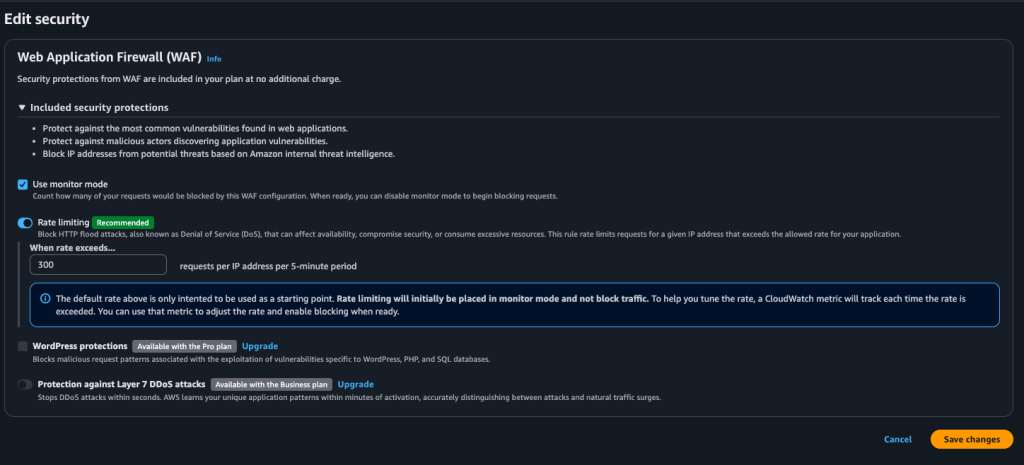
One of the underrated reasons to do this is that CloudFront gives you an edge layer for basic bot defense. Even on the free plan, you can enable rate limiting/monitoring so random traffic is handled earlier, instead of everything slamming your Apache box directly.
I turned on the recommended rate limiting settings (it starts in monitor mode), then I can tighten it later if I need to.
Security / rate limiting settings screen
The redirect loop issue (and why it happened)
After switching DNS, browsers started throwing “too many redirects.”
The fastest way to see what was happening:
curl -IL https://www.antpace.com | head -n 40
It was an endless chain of 301s. The cause was not CloudFront. It was my origin.
I had unconditional Apache redirects living in two configs:
/opt/bitnami/apache/conf/bitnami/bitnami.conf
/opt/bitnami/apache/conf/bitnami/bitnami-ssl.conf
And the line was:
Redirect permanent / https://www.antpace.com/
That redirect is too blunt once CloudFront is in front. CloudFront can cache the redirect and then you’ve got a fast global redirect loop.
grep output showing the redirect line in both files
browser redirect error page
Canonical redirect at the edge (CloudFront Function)
I still wanted apex → www, but I didn’t want Apache doing it anymore.
So I created a CloudFront Function and attached it to the Default behavior on Viewer request:
function handler(event) {
  var request = event.request;
  var host = request.headers.host.value;

  if (host === 'antpace.com') {
    var qs = request.querystring;
    var loc = 'https://www.antpace.com' + request.uri + (qs && qs.length ? ('?' + qs) : '');
    return {
      statusCode: 301,
      statusDescription: 'Moved Permanently',
      headers: {
        location: { value: loc }
      }
    };
  }

  return request;
}
This makes the redirect logic obvious and centralized, and it keeps the origin hostname out of the equation.
CloudFront Function code + association on the behavior
Invalidate CloudFront cache on deploy (GitHub Actions)
My deploy process is GitHub Actions. It SSHes into Lightsail and runs my deploy script. With caching enabled, I wanted updates to show up immediately after a push.
So I added a CloudFront invalidation step after deploy:
That’s the simple version. I can narrow it later, but /* makes “deploy means live” true.
GitHub Actions run showing the invalidation step
CloudFront invalidations tab
What I got out of this
Faster global delivery of the main site via edge caching
Less load on Lightsail
WordPress stays safe because /blog/* is not cached and forwards the right stuff
Better options for bot defense at the edge
Canonical redirects handled at CloudFront instead of server config files
Automated deploy invalidation so changes show up right away
If you’re doing this on a mixed site (static-ish pages plus WordPress), the split behaviors are the whole thing. Treating everything the same is how you end up caching logins or debugging redirects at 2am.
When I went to save this post in WordPress, it kept failing with the classic editor error: “Updating failed. The response is not a valid JSON response.” At first it looked like a WordPress problem, but the actual response coming back was a CloudFront-generated 403 “Request blocked” HTML page, which meant the request never made it to WordPress at all. The weird part was it only happened with certain content. Normal edits saved fine, but as soon as I pasted in code-heavy sections (Apache config blocks, rewrite rules, YAML, JS), CloudFront’s built-in WAF protections flagged the request body as suspicious and blocked it. The fix was simple once we knew what was happening: I enabled WAF “monitor mode” on the CloudFront distribution so it would log potential blocks instead of enforcing them, and after the change finished deploying across CloudFront, saves started working again. I kept rate limiting on for bot defense, but left the common-threat protection in monitor mode until I eventually switch to a full WAF Web ACL where I can add exceptions for WordPress editor endpoints.
One extra thing I did on the WordPress side was add a tiny mu-plugin as a guardrail. I like mu-plugins for infrastructure-style fixes because they always load and they cannot be accidentally disabled in the admin UI. I did not put anything “in wp-admin” because the block editor issue is really about REST requests and editor endpoints, and WordPress updates can overwrite admin code anyway. Also, I don’t track that file in version control.The mu-plugin lives in wp-content/mu-plugins/ and keeps the behavior consistent no matter what theme or normal plugins are doing.
I’ve created blog content for a long time, here and other places. I’ve also contributed to the collective cloud called social media throughout my so-far short life. These posts have ranged from philosophical to instructional, and woven with stories and real experiences.
Over the years, this website has worn many hats: a personal site, a freelance portfolio, a solo agency brand, a resume, a place to try stuff. It’s always been experimental. I write about programming, about writing, and about my experiences. Some non-blog pages on this website feel very “marketing” but dually have helped me to more clearly define what services I can help people with.
I really want to make a shift to emphasize that this is a “personal brand” website, and not necessarily a commercial one. My consulting services are provided as a sole-proprietorship under my personal brand. Launching a consulting agency brand to present a more “business-first” appearance to potential clients is a possibility, but is not what this website is.
Video
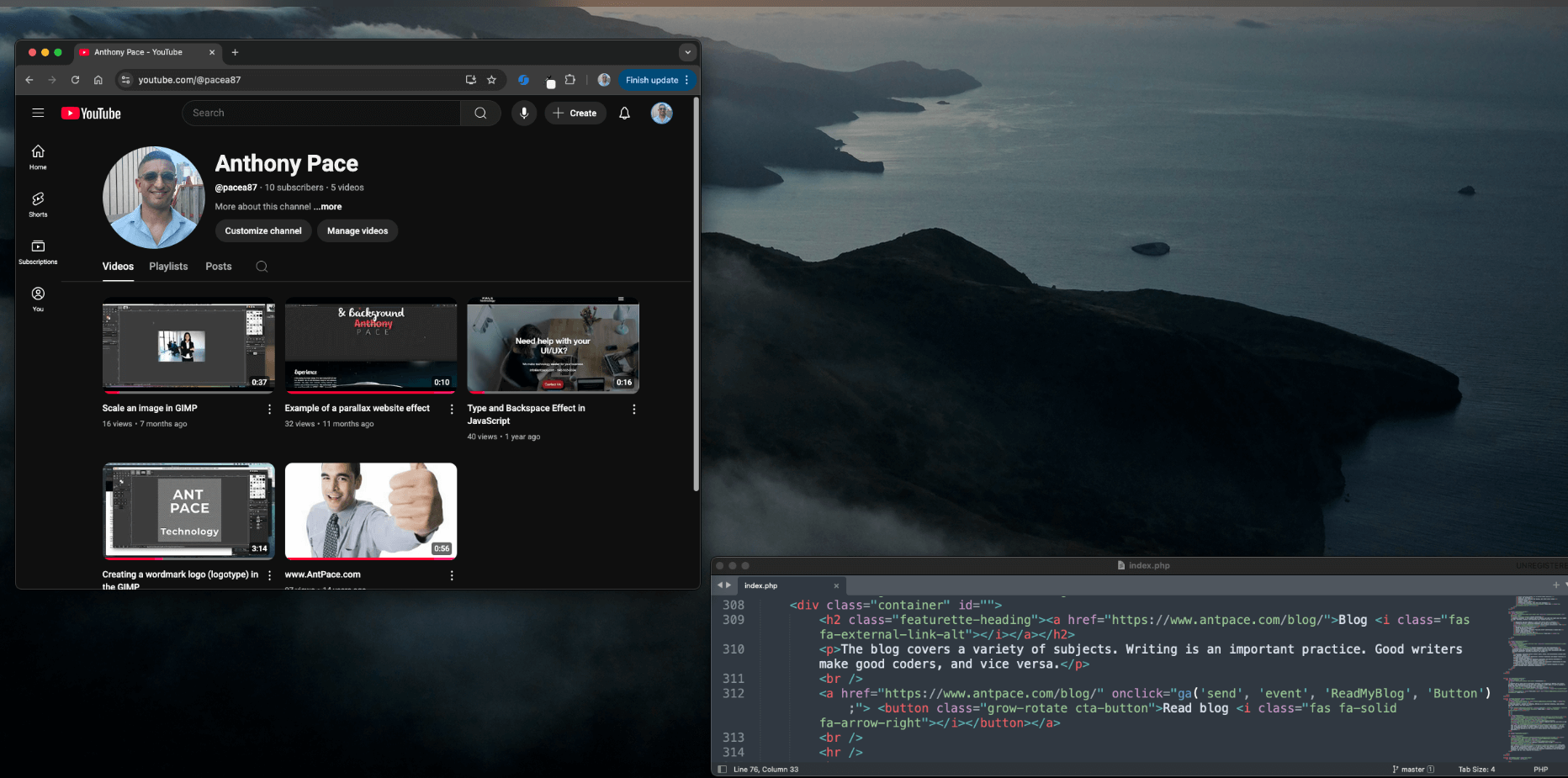
I’ve published some YouTube content, for instructional blogs and product tutorials. I haven’t done much vlog or podcast style talking videos. Instead of strictly writing, I think adding video companions to make these posts more multi-media is a step in the right directions. I’ve thought about going back to existing posts and adding a companion video as a way to get started. I’m especially interested in streaming on a platform like Twitch. I could record myself doing computer projects and yapping about it. Then, blog posts like these could be “show notes” for each VOD.
Community
The great thing about publishing content is the community it can build. In a lot of ways, building a brand is building a community around it. I think that is even true for a personal brand. I’d like the content I create to be a launch pad for community.
This site is a sandbox, a signal, and a snapshot. It changes with me. I just want to document what I’m learning, thinking, and building in real time. Whether it’s code, ideas, personal growth, or experiments with new formats, this is where it all lands. If any of it resonates with you, I hope you’ll stick around, and say “hi”.
If you’re running an online store and want to improve how it performs, whether that’s through better product pages, paid ads, or SEO, here’s a clear look at what I help with.
This is the same kind of breakdown I send to new clients. If you’re curious about what working together would look like, or you’re just trying to understand where your store could improve, this will give you a solid starting point.
Product Page Improvements
I’ve helped a lot of stores clean up their product pages. It’s rarely about fancy design or trendy layouts. It’s usually just making things clearer, more helpful, and easier to buy.
That might mean rewriting the title to actually say what the product is, or adding a quick summary near the top so people know what they’re looking at. Sometimes it’s just moving important info higher up the page, or fixing how size options and color swatches work.
I’ll also go through the product description, make it easier to skim, and add any missing details that help someone make a decision. We might talk about reviews, delivery times, return policies — all the little things that build trust and reduce hesitation.
Most of this work doesn’t require a new theme. It’s just about getting the important stuff in the right place and written in a way people actually understand.
I don’t believe in over-complicating SEO. I focus on the basics, the stuff that matters.
I look at how your product or category pages are written. I clean up titles and descriptions. I find what your customers are actually searching for, and make sure your pages match that.
If your site has a bunch of technical issues slowing it down or confusing Google, I’ll help fix that too. But for most stores, the biggest wins come from getting the content right.
This is SEO that’s built to last, not just keep up with the latest trend.
Paid Ads on Meta and Google
If you’re not running ads yet, or you’re running them but not getting much out of it, I can help set up a simple, smart ad strategy that actually fits your business.
I work with both Meta (Facebook and Instagram) and Google Ads. That includes creating the campaigns, setting up tracking, writing the copy, and making sure the right people are seeing the right product.
This isn’t about dumping money into ads and hoping for the best. I usually recommend starting with a modest budget — around three hundred dollars a month — so we can test what works, make adjustments, and grow from there.
If you’ve tried ads before and gave up because it felt too complicated or expensive, I get it. My job is to keep it clear, lean, and focused on what helps you sell.
Strategy Sessions and General Support
Some clients also use me as a sounding board. You can book time to talk through decisions, plan a launch, or review performance. These sessions are useful for:
Reviewing analytics and sales trends
Planning out content or campaigns
Brainstorming new product ideas
Getting feedback on design or structure
Solving a specific issue with your site or tools
You can use your time however you want. I’m not just here to check boxes. I’m here to help your store grow.
How I Charge
You can book time in flexible blocks. This price are current as of June 2025.
One hour at one hundred fifty dollars
Five hours at one hundred twenty five per hour
Ten hours at one hundred per hour
Time is tracked clearly and shared with you. You can use it across any of the services above. Once purchased, hours never expire. There are no refunds, but I make sure everything is clear before we begin.
Interested in Working Together?
If you’re ready to improve your store, or just want to talk through some ideas, feel free to reach out. We can start with a small block of hours and go from there.
If you’re running an online store and getting traffic but not many sales, there’s a good chance the problem is on your product pages.
The good news is that you don’t need a whole new website or a big redesign. Over the years, I’ve worked with clients on both Shopify and WooCommerce, and I’ve seen how a few small changes like layout, copy, or clarity can make a real difference.
Here are the areas I usually focus on.
1. Make the product title more useful
Most product titles are just names. That’s fine internally, but not always helpful to your customer. It helps to add a short description right in the title. Something that makes it clearer what the product is or why it matters. Even a small phrase like “great for everyday use” or “lightweight and durable” can help.
2. Add a quick summary near the top
The top of the page is where people decide whether to keep scrolling. A short line that sums up what the product is and why it’s useful can give people the confidence to keep going. Without it, the page can feel unfinished, even if the design is clean.
3. Make sizing or variant selection easier
If your product comes in sizes or formats, that info needs to be clear and easy to find. I usually recommend a visual chart, or a short note like “most customers choose Medium.” You want to remove friction wherever possible.
4. Label your color or style options clearly
If you use color swatches or variant buttons, make sure each one is clearly labeled. Tiny dots with no text don’t always translate well, especially on mobile. If something is out of stock, show that visually so customers don’t get frustrated trying to pick it.
5. Rewrite the description in a way people can skim
A lot of product pages either say too little or too much. I try to keep it simple. Start with a short intro, then break out the rest into bullet points or short sections with clear headings. Don’t just list specs. Tell people why those features actually matter.
6. Add a little trust
If you have reviews, use them. If you don’t, that’s okay. You can still add small trust builders like “over 1,000 sold,” or “used by professionals,” or a simple return policy. It gives people confidence to buy from you.
7. Be clear about shipping
If someone is about to buy, they shouldn’t have to click through a bunch of tabs to find out when the item will arrive. I usually suggest adding a short line near the price or Add to Cart button. Something like “ships in 1 to 2 business days” or “free shipping over $50.”
8. Make sure it works well on mobile
If most of your traffic is on mobile, test your product page on your phone. Are the buttons easy to tap? Is the Add to Cart button visible without scrolling too much? Small changes here can make a big difference.
You probably don’t need a new theme
Most of the time, product pages don’t need a full redesign. They just need to be clearer, easier to read, and more helpful. The goal is to remove confusion and help people feel confident about what they’re buying.
If you want help figuring out what to change on your own site, I offer one-time strategy sessions and ongoing optimization work. Get in touch if that’s something you’re interested in.
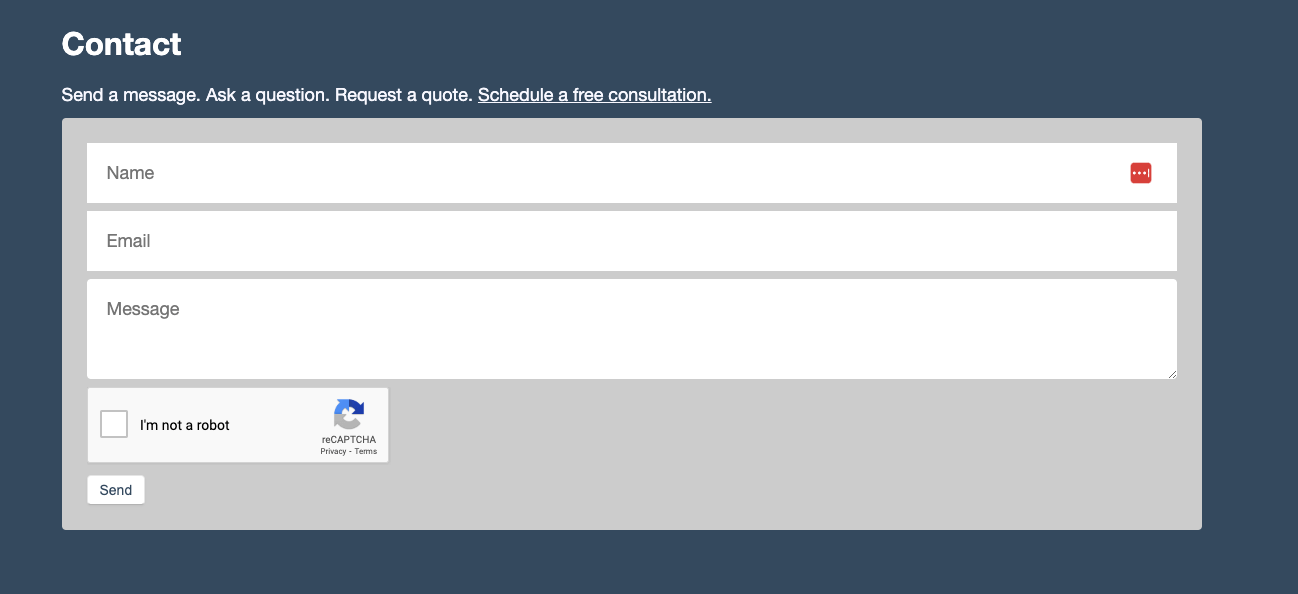
I first explored reCAPTCHA for this website’s contact form. After getting too many spam messages, I decided to add some protection. It is Google’s implementation of CAPTCHA (reimagined) and has a long history.
The Turing Test is a concept introduced by the British mathematician and computer scientist Alan Turing in 1950 as a way to evaluate a machine’s ability to exhibit intelligent behavior indistinguishable from that of a human. The test is named after Alan Turing, who proposed it in his paper titled “Computing Machinery and Intelligence.” The history of CAPTCHA (Completely Automated Public Turing test to tell Computers and Humans Apart) traces back to the late 1990s when researchers began exploring ways to distinguish between humans and automated scripts or bots online.
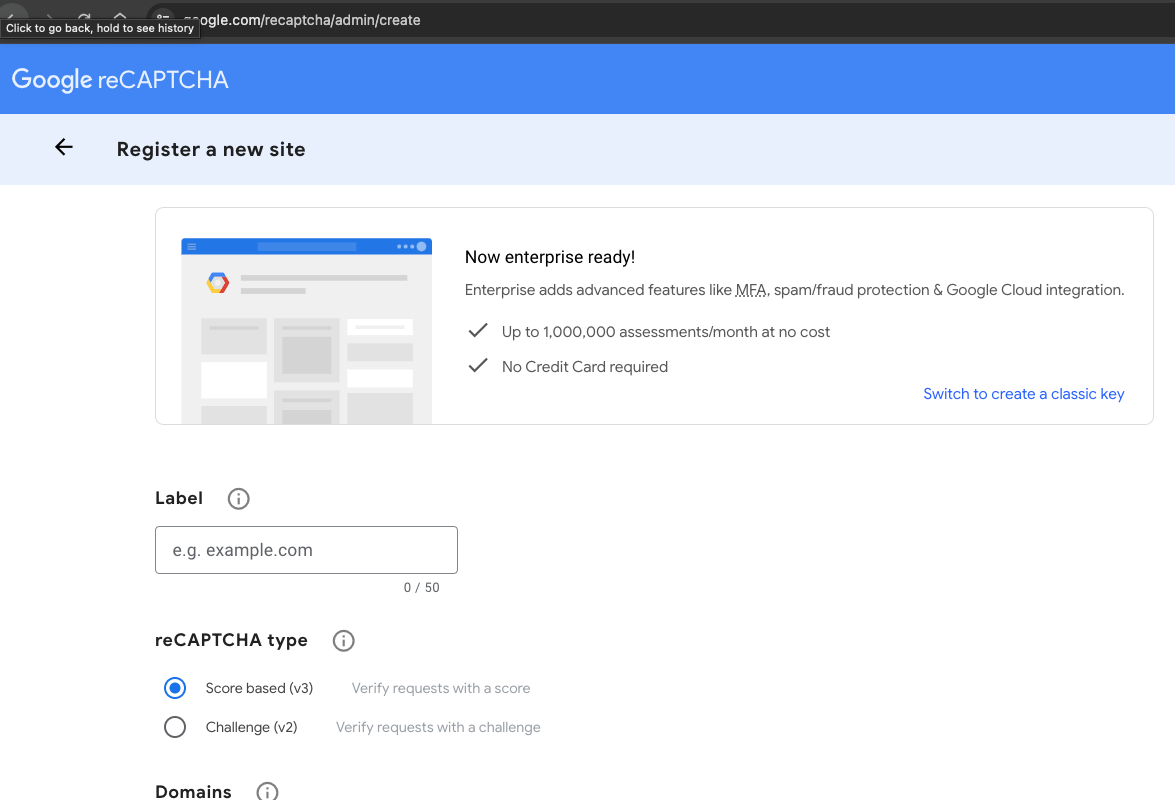
Google’s reCAPTCHA service requires you to register the website you’re going to use it on:
It provides “Up to 1,000,000 assessments/month at no cost”. Once registered you’ll get a site key (for the client side) and a secret key (for the server side).
PHP & JavaScript Implementation
You can use the keys to implement the Google reCAPTCHA service on a vanilla website. In your HTML contact form, you need to add the site key as an empty `<div> element’s `sitekey` data attribute:
The `.g-recaptcha` is transformed to a hidden input and visible user interface by Google’s JavaScript API. The UI is a checkbox that humans can click, but bots will miss. CAPTCHA mechanisms typically present users with tasks that are easy for humans to solve but difficult for automated scripts or bots.
CAPTCHA challenges can take various forms, such as:
Text-based CAPTCHA: Users are asked to transcribe distorted or obscured text displayed in an image.
Image-based CAPTCHA: Users are prompted to identify objects, animals, or characters within a series of images.
Checkbox CAPTCHA: This is what our example here is using. Users are asked to check a box to confirm that they are not a robot. This can be combined with additional checks, such as analyzing mouse movements or browsing patterns, to verify user authenticity.
Interactive CAPTCHA: Users are presented with interactive puzzles or challenges, such as rotating objects or dragging and dropping items into specific locations.
function captchaLazyLoad(){
	contactCaptchaTarget = document.getElementById('contactSection')
	if (!contactCaptchaTarget) {
        return;
    }
	let contactCaptchaObserver = new IntersectionObserver(function(entries, observer) {
		if (entries[0].isIntersecting) {
            var script = document.createElement('script');
		    script.src = "https://www.google.com/recaptcha/api.js";
		    document.body.appendChild(script);
            contactCaptchaObserver.unobserve(contactCaptchaTarget);
        }
	})
	contactCaptchaObserver.observe(contactCaptchaTarget);
}
captchaLazyLoad();
The assessment value is serialized with the form data and passed along via a RESTful AJAX POST request to the back-end service:
var notifications = new UINotifications();
$("#contactMe").click(function(){
	var contactMessage = $("#contactMessage").val();
	if(contactMessage.length < 1){
		notifications.showStatusMessage("Don't leave the message area empty.");
		return;
	}
	var data = $("#contactForm").serialize();
	$.ajax({
		type:"POST",
		data:data,
		url:"/contact.php",
		success:function(response){
			console.log(response)
			if(response === "bot"){
				notifications.showStatusMessage("Please confirm your humanity.");
				return;
			}
			notifications.showStatusMessage("Thank you for your message.");
			$("form input, form textarea").val("");
		}

	});
});
The receiving PHP file takes the reCAPTCHA assessment value, combined with our secret key, and passes them along to Google’s “site verify” service:
In 2018, Google introduced reCAPTCHA v3, a version of CAPTCHA that works invisibly in the background to assess the risk of user interactions on websites. reCAPTCHA v3 assigns a risk score to each user action, allowing website owners to take appropriate action based on the perceived risk level.
A recent WordPress client messaged me “is there anyway NOT to receive anywhere from 5-10 of these a day. ” He was referencing spam messages coming from his website’s contact form. His contact page uses Contact Form 7, a popular WordPress plugin that allows website owners to easily create and manage contact forms.
I was able to easily integrate reCAPTCHA v3 by installing a 3rd party plugin. After installation, I was able to enter the site and secret keys into the WordPress dashboard. Version 3 does not require users to check any boxes or solve any challenges – it is seamless and invisible.
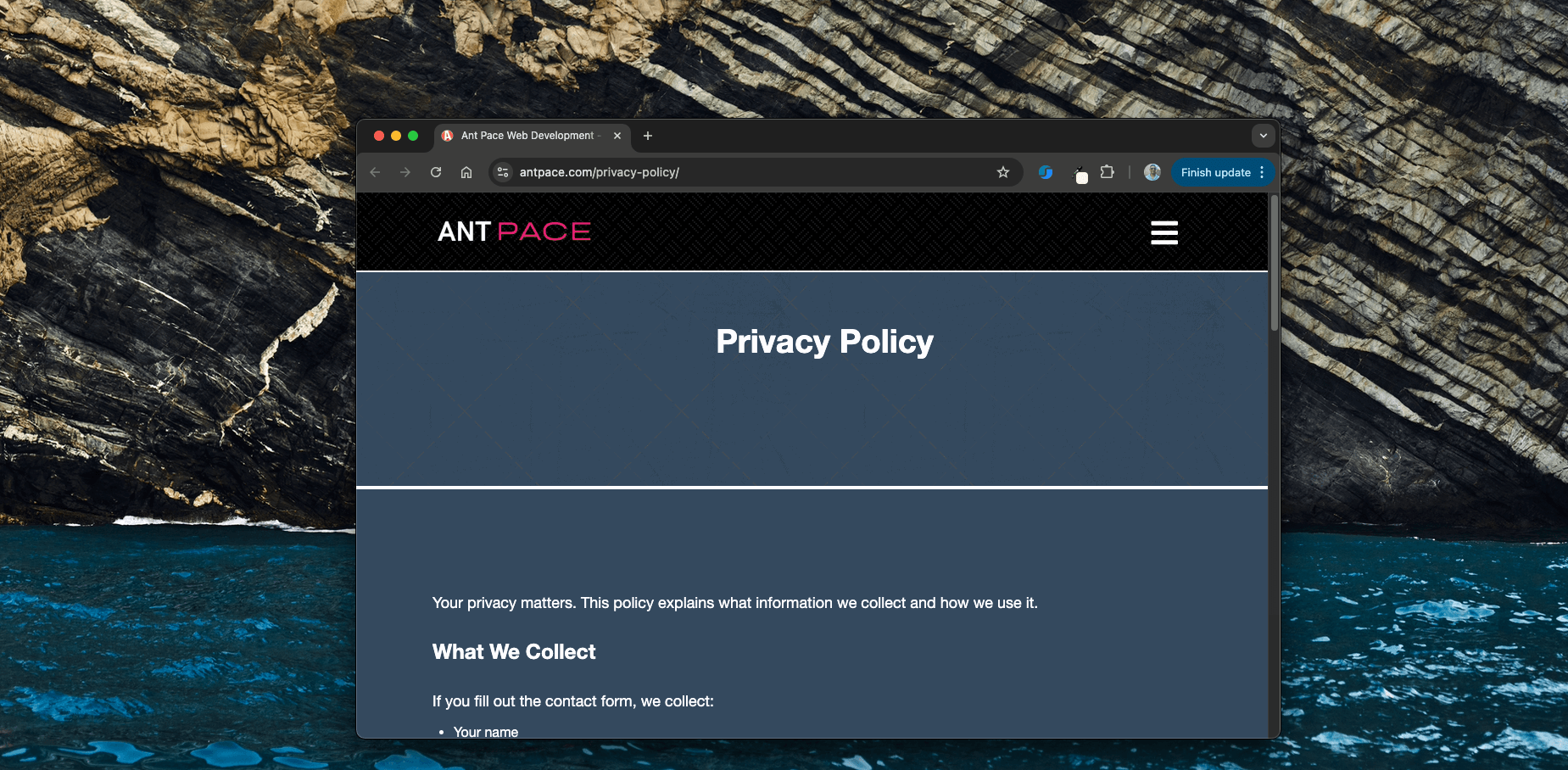
Most small business owners skip the privacy policy when launching a website. It seems like something only big companies need. I used to think that too. But even if you’re just using a basic contact form, you’re collecting personal data, and you’re expected to tell people how you handle it.
Why It Matters
It’s legally required If you collect names, emails, or anything else that can identify someone, privacy laws like GDPR (Europe) and CCPA (California) apply to you. These laws don’t just apply to big businesses.
Platforms expect it If you ever want to run Google Ads, Facebook Ads, they’ll technically require your site to have a published privacy policy. No policy, no approval. I worked with a client last year that needed to add a privacy policy to their website before they could work with a certain marketing platform (I helped them with that).
It builds trust People are more likely to contact you if you’re upfront about how you handle their info. A basic privacy policy shows you take your business seriously and respect your visitors.
What Counts as Personal Data
Even if you don’t store anything in a database, collecting names and emails through a contact form still qualifies as handling personal data.
Other things that count:
IP addresses (via analytics)
Form submissions
Embedded chat or contact widgets
If your site does any of that, it needs a privacy policy.
How I Wrote Mine
I kept it simple and honest. My site only collects what someone types into the contact form. I don’t track anything beyond that except through Google Analytics.
Here’s how I structured it:
What I collect: Name, email, and message via the contact form
What I use it for: To reply. Nothing else
How I store it: I don’t. The message just gets sent to my email inbox
Third parties: I mention Google Analytics, if I’m using it
User rights: I let people know they can ask me to delete their message if they want
After writing it, I had a lawyer review the policy to make sure it was solid. That’s something I recommend for every site, and it’s a service I include when I help clients launch or clean up their websites. You can find mind in the footer of this website
Takeaways for Other Business Websites
If you have a contact form or use analytics, write a simple privacy policy. Don’t wait until you’re setting up ads or working with a client who asks about compliance.
You don’t need a lawyer to write it, but you should have one look it over. Better to catch issues early than deal with problems later.
Want Help?
If you’re building or improving your website, I include privacy policy guidance and legal review as part of my setup service. I’ll help you get a site that’s fast, clean, and compliant — so you can focus on running your business.
On the homepage of my website, I wanted to add an animated effect that appears to backspace some text, and type out new text. Here is a video of the final product:
There are basic JavaScript tutorial snippets that can type things out:
var currentIndex = 0;
var text = 'This is a typing effect!'; /* The text */
var typingSpeed = 50; /* The speed/duration of the effect in milliseconds */

function typeWriter() {
  if (currentIndex < text.length) {
    document.getElementById("output").innerHTML += text.charAt(currentIndex);
    currentIndex++;
    setTimeout(typeWriter, typingSpeed);
  }
}
There are also more robust libraries that could do much more, like TypeIt JS. I shy away from using libraries for small implementations, so I want to write my own vanilla solution. First, I wrapped the dynamic portion in a <span> tag with its own ID:
<h2>Need help with your<br /> <span id="dynamicText">website?</span></h2>
I added a line break AND a non-breaking whitespace character to ensure that the changing text used a consistent amount of space. Otherwise, on smaller screen sizes, you could see elements jump as the content changes.
Here is the JavaScript that controls the animation:
  const dynamicText = document.getElementById('dynamicText');
  let originalText = dynamicText.innerText;
  const newTexts = ["app?", "database?", "UI/UX?", "AI?", "API?", "blockchain?", "website?"];
  let textIndex = 0;
  let index = originalText.length;

  function deleteText() {
    dynamicText.innerText = originalText.slice(0, index--);

    if (index >= 0) {
      setTimeout(deleteText, 100); // Adjust the timeout to control the speed of deletion
    } else if (textIndex < newTexts.length) {
      originalText = newTexts[textIndex];
      setTimeout(typeNewText, 500); // Adjust the delay before typing new text
    }
  }

  function typeNewText() {
    if (textIndex < newTexts.length) {
      const newText = newTexts[textIndex];
      index = 0;

      function type() {
        dynamicText.innerText = newText.slice(0, index++);

        if (index <= newText.length) {
          setTimeout(type, 100); // Adjust the timeout to control the speed of typing
        } else {
          textIndex++;
          if (textIndex < newTexts.length) {
            setTimeout(deleteText, 500); // Adjust the delay before deleting the text
          }
        }
      }

      type();
    }
  }
The code snippet begins by declaring a constant variable dynamicText, which stores a reference to an HTML element with the id ‘dynamicText’. This element is where the typing effect will be displayed. Following this, a variable originalText is initialized with the initial text content of the ‘dynamicText’ element. This serves as the starting point for the typing effect.
Next, an array newTexts is defined, containing a list of texts that will be typed out in sequence after the original text is deleted. These texts represent the subsequent messages to be displayed in the typing animation.
Two numerical variables, textIndex and index, are declared to keep track of the current text being typed from the newTexts array and the index within the text being typed, respectively.
The deleteText() function is responsible for deleting the original text character by character until it’s fully removed. It utilizes the setTimeout function to control the speed of deletion. Once the original text is completely deleted, the function triggers the typeNewText() function to start typing the next text from the newTexts array.
Similarly, the typeNewText() function is defined to type out the new text character by character. It also utilizes setTimeout to control the speed of typing. Once the entire new text is typed, the function updates the textIndex to move to the next text in the array and triggers the deleteText() function again to delete the typed text and repeat the process with the next text.
Blinking Cursor
To add a dynamic touch, I incorporated a blinking cursor to the typing effect. The “cursor” itself if a vertical pipe bar character: “|”. I wrapped in a <span> tag and gave it a CSS class cursor.
<h2>Need help with your<br /> <span id="dynamicText">website?</span><span class="cursor">|</span></h2>
Making it blink was as simple as adding some CSS rules:
Finally, I remove the cursor when the final word is being typed out:
if(textIndex+1 === newTexts.length){
	var cursorElement = document.querySelector('.cursor');
	if (cursorElement) {
	cursorElement.remove();
}
I add that code to the conditional block responsible for checking if all of the words have been iterated through. The final source looks like this:
const dynamicText = document.getElementById('dynamicText');
let originalText = dynamicText.innerText;
const newTexts = ["app?", "database?", "UI/UX?", "AI?", "API?", "blockchain?", "website?"];
let textIndex = 0;
let index = originalText.length;

function deleteText() {
  dynamicText.innerText = originalText.slice(0, index--);

  if (index >= 0) {
    setTimeout(deleteText, 100); // Adjust the timeout to control the speed of deletion
  } else if (textIndex < newTexts.length) {
    originalText = newTexts[textIndex];
    setTimeout(typeNewText, 500); // Adjust the delay before typing new text
  }
}

function typeNewText() {
  if (textIndex < newTexts.length) {
    const newText = newTexts[textIndex];
    index = 0;

    function type() {
      dynamicText.innerText = newText.slice(0, index++);

      if (index <= newText.length) {
        setTimeout(type, 100); // Adjust the timeout to control the speed of typing

		if(textIndex+1 === newTexts.length){
			var cursorElement = document.querySelector('.cursor');
			if (cursorElement) {
			cursorElement.remove();
		}
        }

      } else {
        textIndex++;
        if (textIndex < newTexts.length) {
          setTimeout(deleteText, 500); // Adjust the delay before deleting the text
        }
      }
    }

    type();
  }
}

window.onload = function() {
  setTimeout(deleteText, 1500);
};
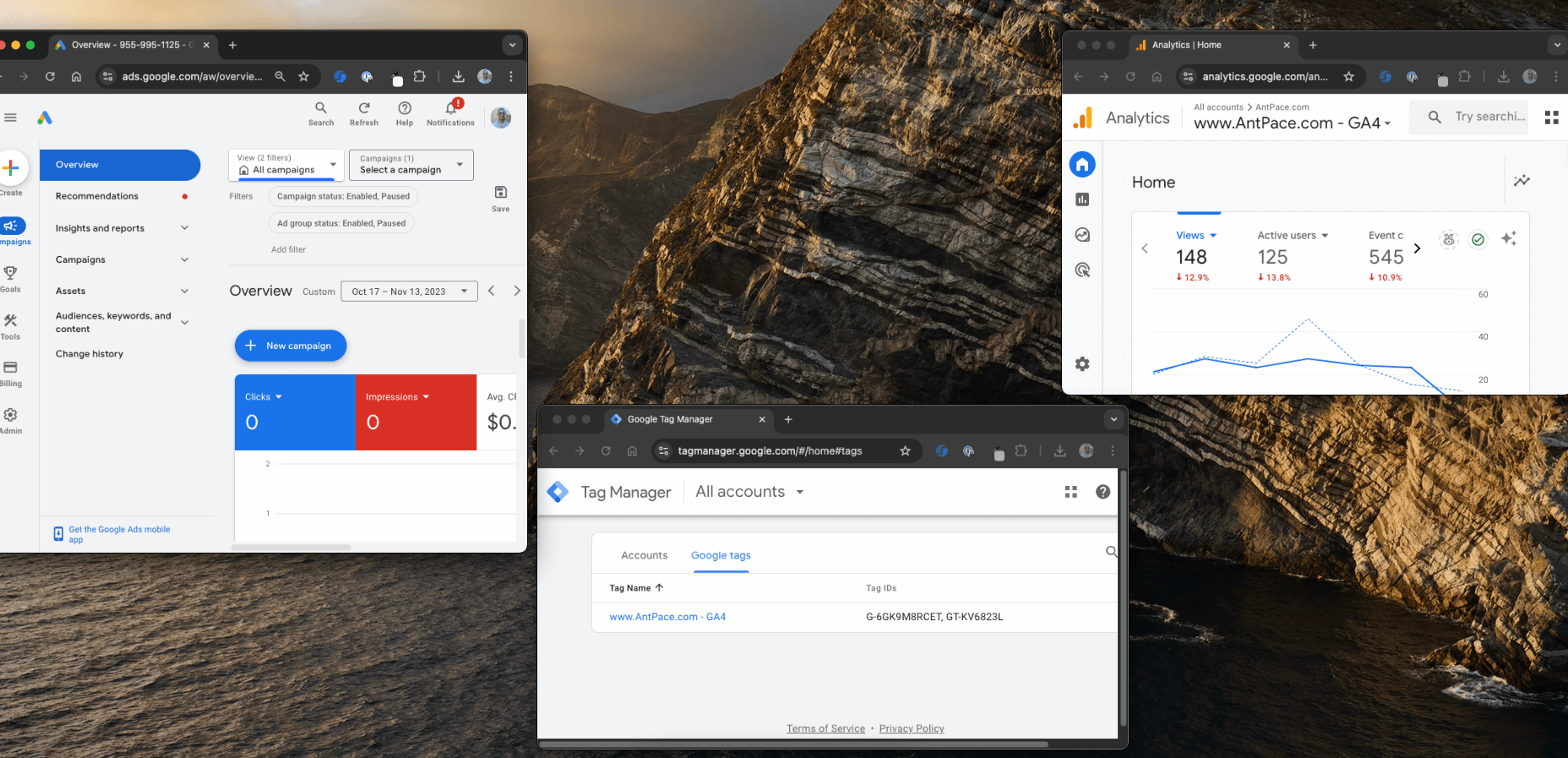
If you’re a business owner or marketer, you’re likely familiar with Google Ads as a strong way to drive traffic to your website. Setting it up effectively can require some technical know-how, especially when integrating with WordPress. Allow me to walk you through properly integrating Google Ads with Google Analytics and Google Tag Manager, the right way, to maximize your website’s performance and data tracking capabilities.
Why Use Google Ads for Your Website?
Google Ads is an excellent tool for driving targeted traffic to your website. By bidding on keywords relevant to your business, you can show ads to users actively searching for what you offer. But, to really understand the value of that traffic, it’s crucial to track it correctly. That’s where tools like Google Analytics and Google Tag Manager come in.
Option 1: Directly Connect Google Analytics and Google Ads with Custom JavaScript
For many businesses and marketers, a straightforward setup of Google Analytics and Google Ads is enough to track important website interactions without needing a more complex setup. If you’re looking to avoid additional tools or platforms, you can connect Google Analytics and Google Ads directly and use custom JavaScript to track key actions on your website. Here’s how to do it:
Step 1: Install Google Analytics (GA4)
To begin, you’ll need to install Google Analytics on your WordPress site. There are a couple of ways to do this:
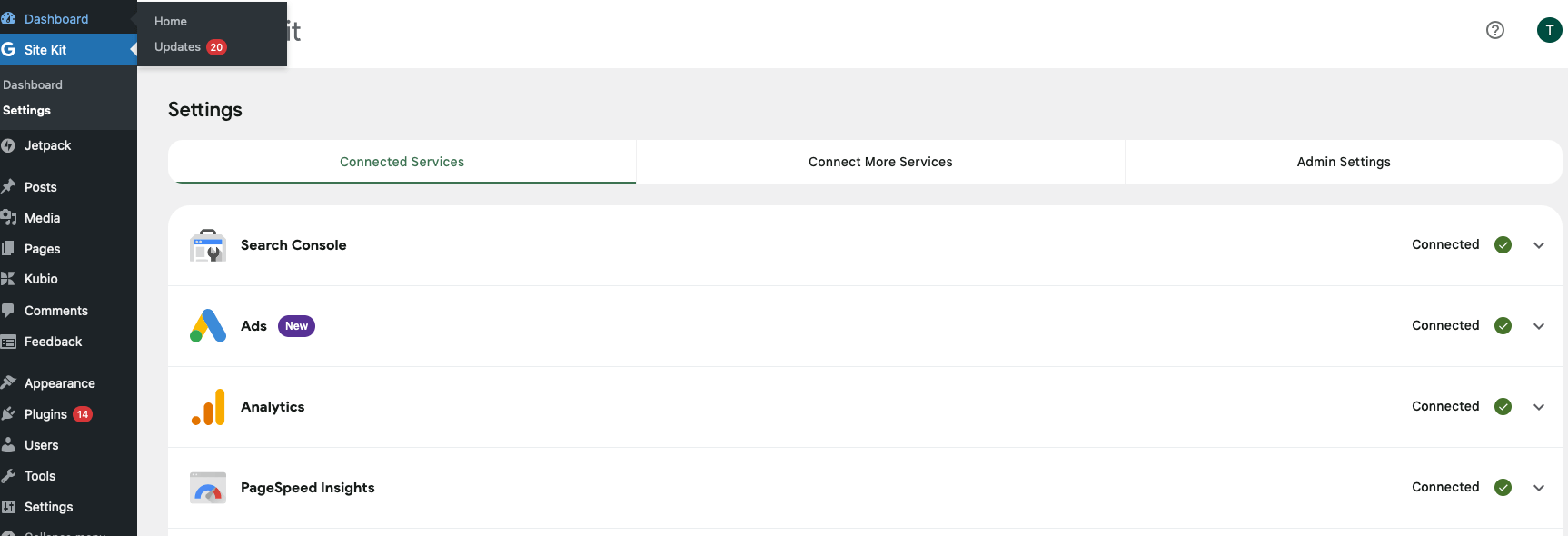
Using a Plugin: WordPress plugins like Site Kit by Google simplify the process. After installation, the plugin will automatically insert the Google Analytics tracking code into your website, and you’ll be able to see key data like page views and user behavior within your Google Analytics dashboard.
Manual Code Insertion: If you prefer not to use a plugin, you can manually add the GA4 tracking code to your WordPress site. To do this, copy the tracking script from your Google Analytics account and paste it into your site’s header or footer file (usually found in your theme settings or via your website’s code editor). This will start collecting data immediately.
Step 2: Link Google Analytics to Google Ads
Once Google Analytics is set up, the next step is to link it with your Google Ads account. This will allow you to see how your ad campaigns are performing in terms of real user behavior and conversions on your website.
In Google Analytics, navigate to the Admin section and find the Google Ads Linking option under the Property settings.
Follow the prompts to link your Google Ads account. Once linked, data such as user behavior, conversions, and audience insights will flow between Google Ads and Analytics, allowing you to optimize your campaigns based on how visitors interact with your site.
Step 3: Set Up Custom JavaScript for Conversion Tracking
For more advanced tracking, you can use custom JavaScript to monitor specific actions on your site, like button clicks, form submissions, or external link redirects. Here’s how you can do this:
Google Ads Conversion Tracking: Google Ads provides a conversion tracking code that you can place directly into your website’s HTML. For example, if you want to track when users complete a form or click a specific button, you can insert this conversion tracking code into the relevant part of your site’s HTML.
Navigate to your Google Ads account, go to Tools & Settings > Conversions, and create a new conversion action.
Google Ads will generate a conversion tracking code that includes a JavaScript snippet. You can add this code directly into your website’s HTML (either through your WordPress editor or directly into the page code) to track actions.
Tracking Button Clicks: If you want to track a button click (for example, a “Contact Us” button), you can insert the conversion tracking code into the button’s HTML attributes. This will trigger a conversion event each time a user clicks the button, allowing you to monitor how often it leads to valuable actions on your site.
Tracking Form Submissions: Similarly, if you want to track when users submit a contact form, you can embed the conversion tracking code into the form’s submission page or thank-you page. This is especially useful for tracking lead generation or contact inquiries.
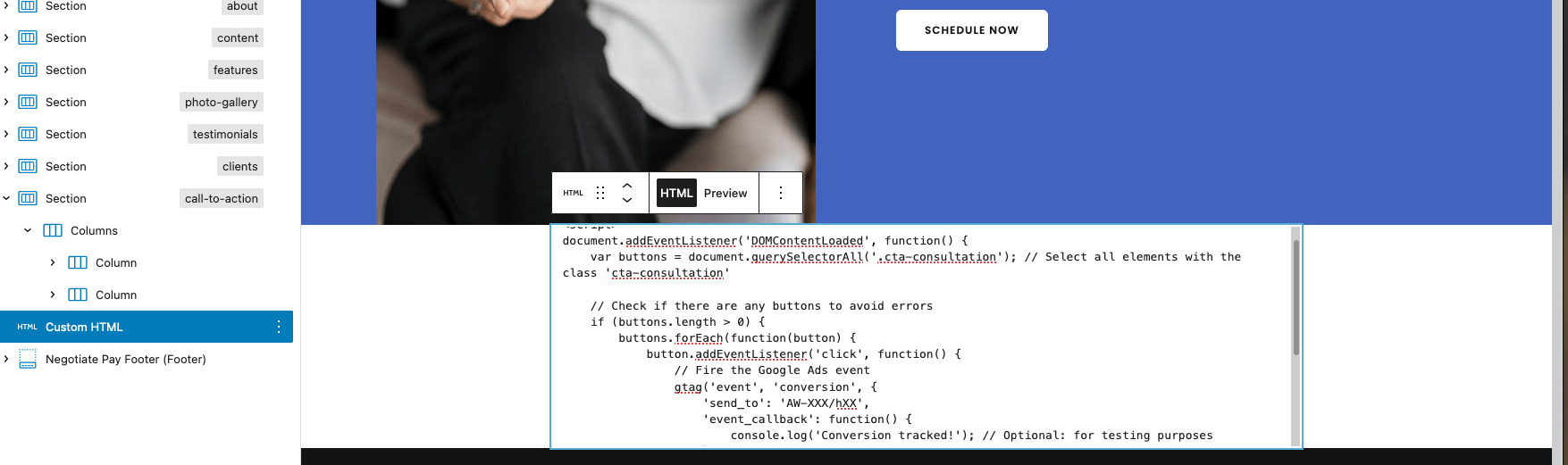
Here is a sample of the code I used:
<script>
document.addEventListener('DOMContentLoaded', function() {
    var buttons = document.querySelectorAll('.cta-consultation'); // Select all elements with the class 'cta-consultation'

    // Check if there are any buttons to avoid errors
    if (buttons.length > 0) {
        buttons.forEach(function(button) {
            button.addEventListener('click', function() {
                // Fire the Google Ads event
                gtag('event', 'conversion', {
                    'send_to': 'AW-XXX/XXX',
                    'event_callback': function() {
                        console.log('Conversion tracked!'); // Optional: for testing purposes
                    }
                });
            });
        });
    }
});
</script>
Step 4: Monitor and Optimize Conversions
Once the custom JavaScript is in place, Google Analytics will start tracking the data, and you’ll be able to see how users are interacting with your site in the Conversions section of Google Ads. Over time, you can monitor the performance of your campaigns and make adjustments to improve your return on investment (ROI).
Key Advantages of This Approach
Simple and Direct: For small or less complex websites, directly connecting Google Analytics and Google Ads using custom JavaScript is a simple and effective solution.
Option 2: Integrating Google Analytics and Google Ads Using Google Tag Manager
For businesses that want more flexibility and control over their tracking setup, using Google Tag Manager (GTM) offers a more advanced approach compared to directly connecting Google Analytics (GA4) and Google Ads. By connecting GA4 through GTM and setting up Google Ads to pull conversion data from GA4, you can streamline the process and enable more precise tracking, including custom click tracking. Here’s how to do it:
Step 1: Set Up Google Analytics (GA4) Through Google Tag Manager
Instead of directly embedding Google Analytics code into your WordPress site, you can set up GA4 using Google Tag Manager. This allows for more flexibility in managing and customizing tracking tags without manually editing the site code. Be careful to not have it set up twice (once directly on its own, and also in GTM), or else you may see double measurements
Install Google Tag Manager on Your WordPress Site
First, install GTM by either using a plugin like Site Kit by Google or manually adding the GTM container code to your site’s header. This will serve as the foundation for all tracking scripts on your site.
Create a GA4 Tag in GTM:
In GTM, create a new tag by selecting Google Analytics: GA4 Configuration.
Add your GA4 Measurement ID (found in your Google Analytics account) to the tag configuration.
Navigate to the bottom left ‘Settings’, then ‘Data collection -> Data Streams’. Select your web stream and copy the ‘Measurement ID’
Set the trigger to All Pages, so it tracks page views across your entire site.
Save and publish the changes in GTM, and your website will now be tracking page views and user behavior through GA4 without needing any code embedded directly in your site.
Step 2: Set Up Custom Click Tracking Through GTM Triggers
One of the major advantages of using Google Tag Manager is the ability to create custom triggers to track specific user interactions, such as button clicks or link clicks, without having to modify the site’s code.
Create a Click Trigger in GTM
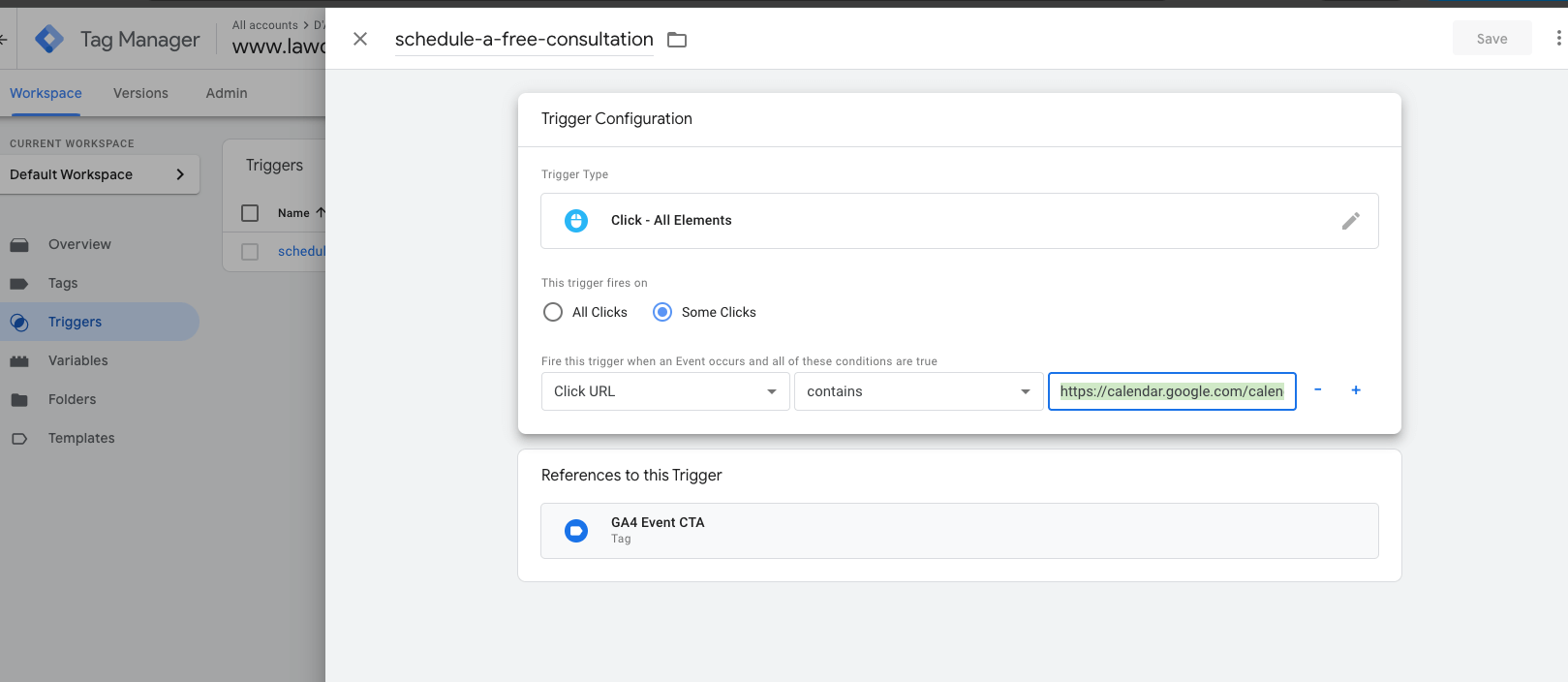
To track specific interactions like button clicks, you’ll need to set up a trigger in GTM. In GTM, create a new Trigger and select the Click – All Elements option. Define the conditions for your trigger, such as when a user clicks a specific button or link. For example, if you want to track a button leading to a third-party calendar page, you can set the trigger to fire when a user clicks on the button with that specific URL. My conversion was based on clicking any button or link that led to a Google Calendar scheduling page. Since the editor we were using (Kubio) generated complex HTML around the button, I was having trouble targeting exact clicks. Ultimately, I used a selector that targeted click URLs that contained part of the destination:
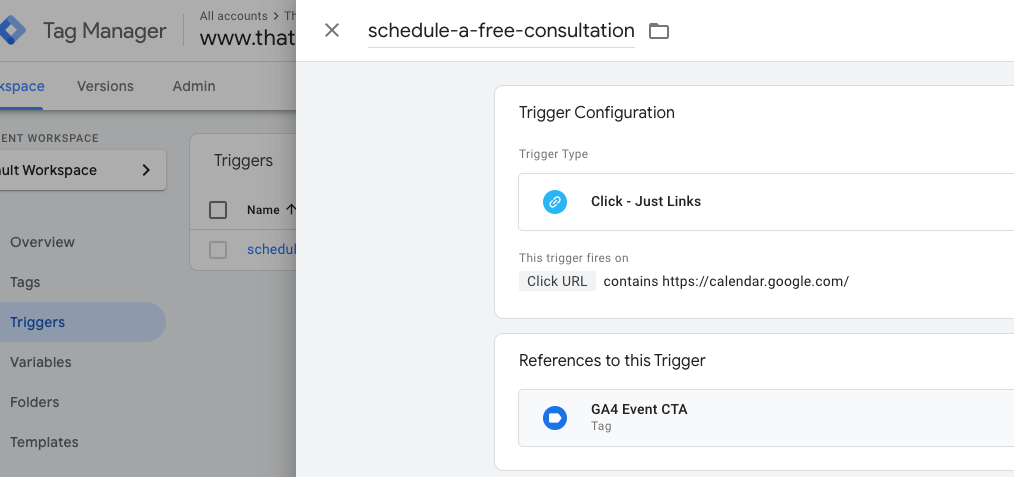
On another setup, I had to target “Just Links” for the event to fire. Make sure you test in preview mode to make sure it works!
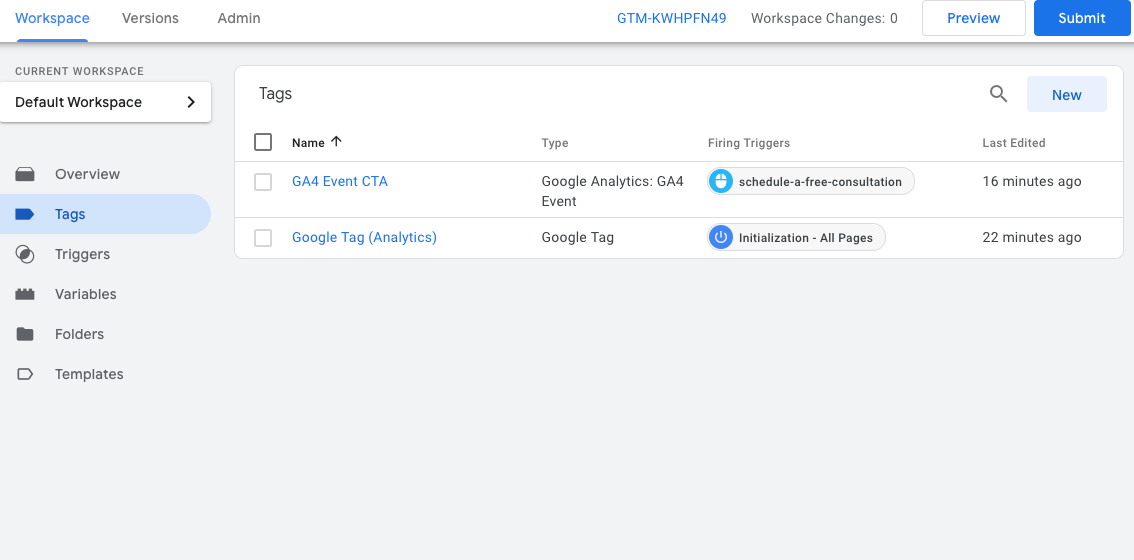
Create a Google Analytics Event Tag:
Create a new Google Analytics: GA4 Event tag in GTM.
Set the event parameters, such as what action or label you want to track (e.g., “Button Click” or “Contact Form Submission”).
Assign the click trigger you just created to this tag, so it fires when the user interaction happens.
Once your trigger is firing, the event will be recorded in GA4. This allows you to see detailed analytics on how users interact with specific elements on your site. You may have to wait until the next day to see it showing up and to continue the rest of this process.
Step 3: Link Google Ads to GA4 for Conversion Tracking
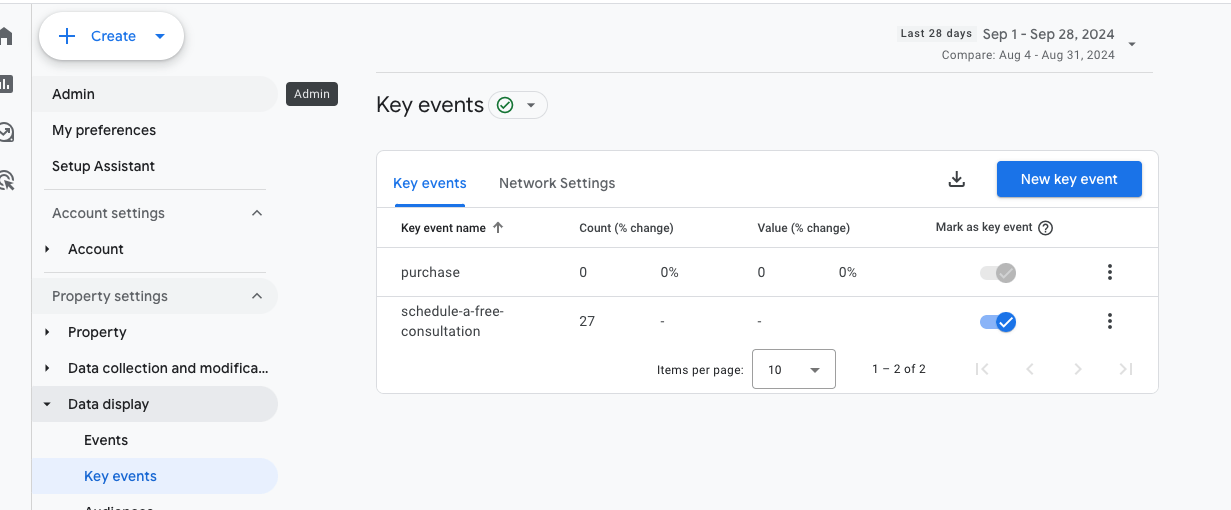
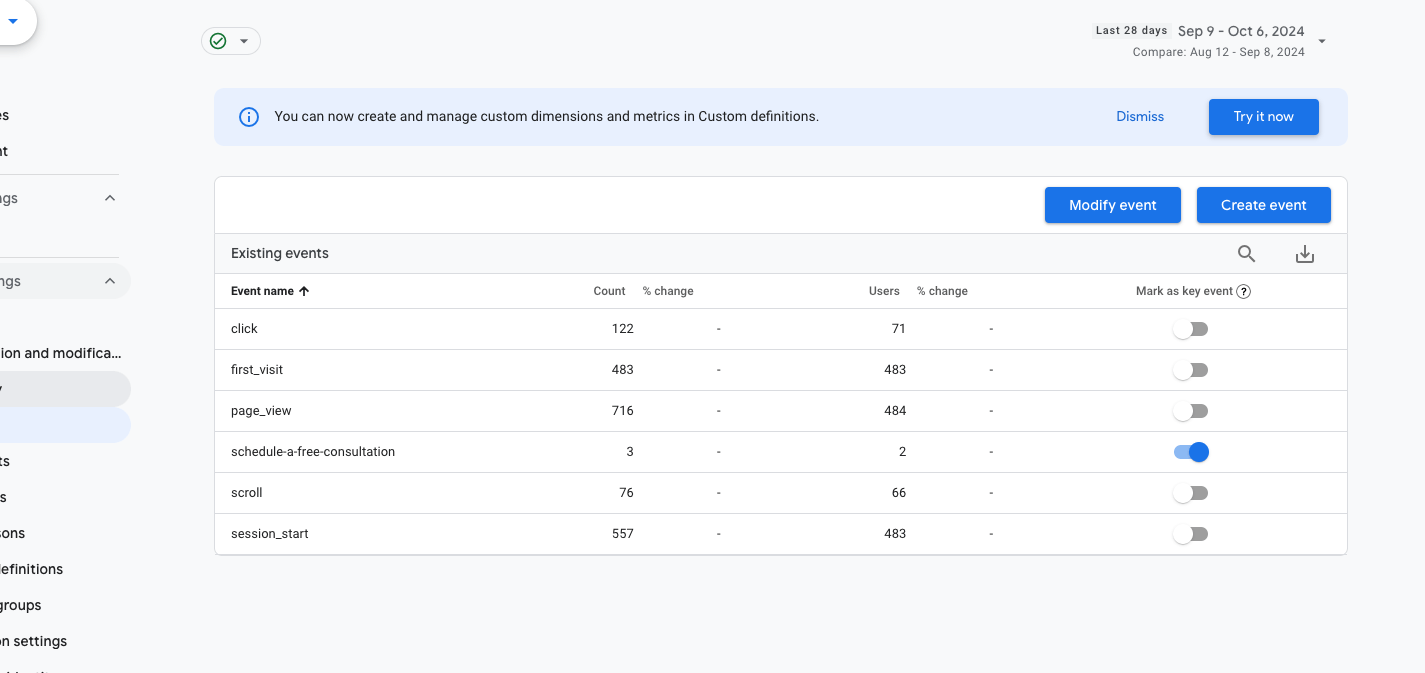
Once GA4 is collecting conversion data, you’ll want to make sure that Google Ads is also using this data for your ad campaigns. Instead of directly adding Google Ads tracking code to your website, you can import conversions from GA4 into Google Ads. Make sure you mark the event as a ‘Key Event’ in GA4:
Link Google Ads to GA4: In your Google Analytics admin settings, find the Google Ads Linking option under the Property settings and link your Google Ads account.
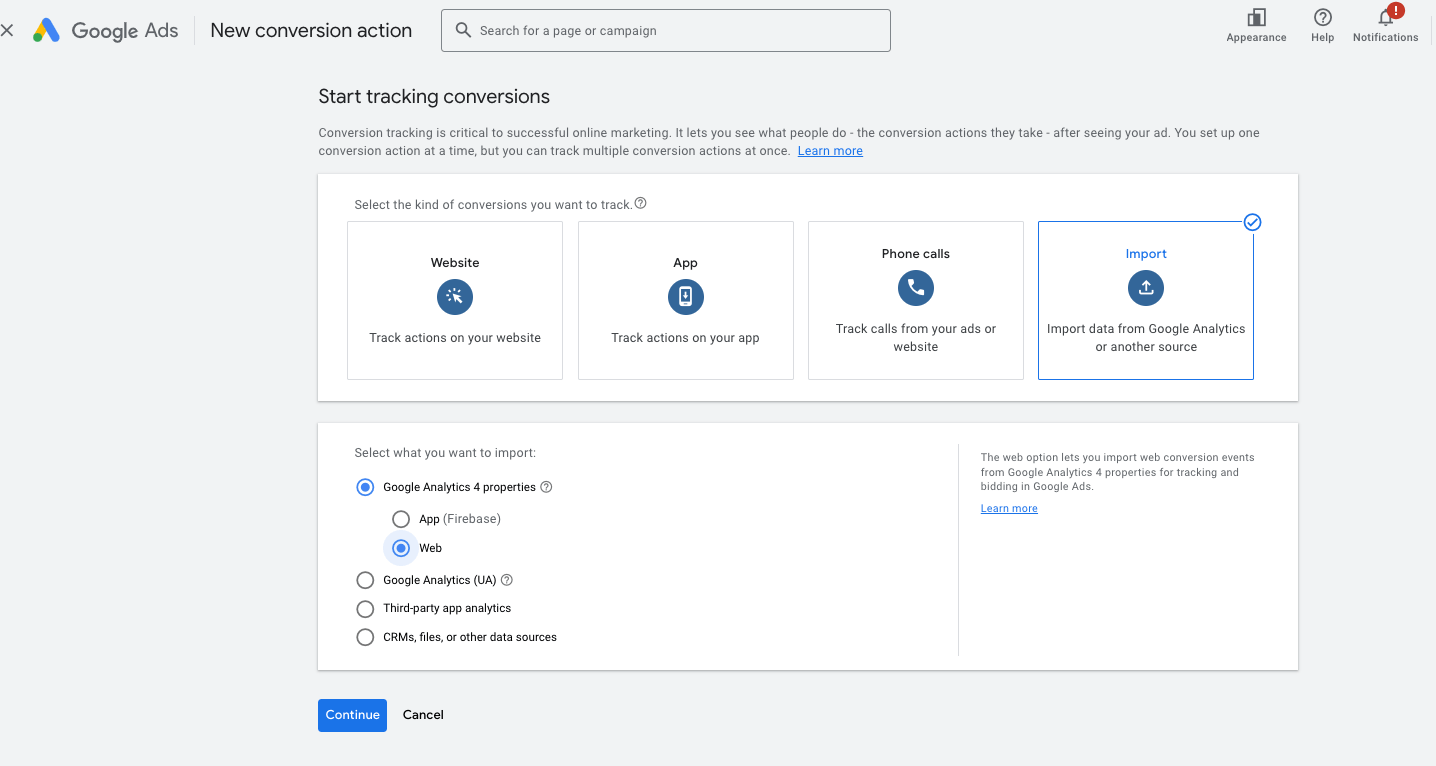
Import Conversions into Google Ads: In your Google Ads account, navigate to Tools & Settings > Conversions. Click to import conversions from Google Analytics. You will now be able to track and optimize your Google Ads campaigns based on the conversion events recorded in GA4.
Step 5: Set Up Google Ads to Track Click Conversions
With the custom click tracking events flowing into GA4, you can now import these events into Google Ads as conversions.
In GA4, mark the click event you created as a Conversion (similar to how you would for other key actions).
Then, in Google Ads, import the conversion from GA4, so your ad campaigns can track the performance of these custom click actions.
This setup allows you to track highly specific user actions (like button clicks or form submissions) and optimize your Google Ads campaigns based on those actions.
GTM allows you to track custom events like button clicks, form submissions, and other interactions without modifying your site’s code. With Google Tag Manager, you can manage all of your tracking codes (for Google Analytics, Google Ads, and other tools) in one place. By pulling conversion data from GA4 into Google Ads, you can optimize your campaigns based on real user actions and get more detailed insights into how users interact with your site.